QuantPilot Complete User Guide
English · Updated 2026-09-28 · Documentation edition 20260928-direct1 · Application and license version 20260927-device1.
This update adds documentation without changing the trading engine. Both Mac and Windows packages contain this guide and its Traditional Chinese counterpart. Open START_HERE.html in the extracted folder to choose a language. The guide is readable offline; external links and market operations need internet access.
01 | Six essentials before you begin
- This is a Python application package, not a standalone .app or .exe installer. Install a supported Python version first; the launcher downloads dependencies on its first run.
- The 1600 USDT price pays for the software, not trading capital. One license covers one computer and perpetual use of the purchased version, not lifetime updates, managed trading or guaranteed returns.
- Automated execution in this edition supports BingX BTC-USDT perpetuals only. Binance and Bybit accounts can be added and queried but this engine does not execute trades there.
- Paper trading uses virtual money and real market data. It is not an exchange testnet, withdrawable profit, proof of actual fills or a forecast of future results.
- Stop new entries does not close an existing position. Closing the app, disconnecting or sleeping the computer interrupts local monitoring. Check exchange positions and protective orders before shutting down.
- Never send your API Secret, private access code, wallet seed or private key to support. For unexplained account activity, inspect the exchange account and restrict the affected credentials.
02 | Pay, verify and download
- Open Pay & download. No account registration or order creation is required.
- Check the receiving address and QR code. Pay exactly 1,600 USDT on TRON (TRC20). Pay network fees separately so the recipient receives the full amount.
- Paste the 64-character on-chain TXID, read and accept the license/refund terms, then click Verify payment.
- After verification succeeds, choose Download Mac or Download Windows.
- Save the private QP- license code shown after verification. Use it to retrieve downloads and activate your computer.
- Extract the ZIP, open START_HERE.html and launch the application. Begin with paper trading.
The QR contains the receiving address only, not the amount. Check both manually before paying. Exchange withdrawals and personal-wallet payments are accepted; wallet message signing is no longer required.
03 | Private license code and later downloads
The successful-payment page supplies a private QP- license code. Click Save license code and keep the resulting text file in a private location. It is not sent by email or support and is not a wallet key or exchange secret.
To download again or change browser, open the purchase page, expand Paid already? Retrieve your download, and enter the saved private license code. There is no storefront sign-in or order screen. Keep any still-working browser session if the code is lost and contact QuantPilot090@gmail.com. Recovery requires review; a public TXID alone cannot retrieve a private code.
A TXID is public. This simplified flow verifies that a payment arrived, not who made it. The first valid redemption receives access. Do not share payment references unnecessarily. If someone redeems your payment first, contact support for independent review instead of paying again.
04 | What payment verification checks
The server reads TRON mainnet final-confirmation data and checks the real USDT token, receiving address, exact 1,600 USDT amount, supported payment time and whether the TXID has already been redeemed. A screenshot or exchange internal withdrawal reference is not a substitute for the on-chain TXID.
| Status | What to do |
|---|---|
| Awaiting confirmation | Wait and press Verify payment again. Do not pay again. |
| Service unavailable / too many attempts | Retry later; rate limits normally allow another attempt after a minute. |
| Underpaid, overpaid, wrong token or wrong address | Contact QuantPilot090@gmail.com with the TXID. Do not split or top up independently. |
| Payment predates this checkout | Contact support for the earlier payment flow. Do not pay again. |
| Already redeemed | Use your saved private license code under Retrieve your download. If you did not redeem it, contact support. |
| Payment verified | Mac and Windows download buttons appear immediately. Save the private license code. |
A successful result appears on the webpage. There are no email, SMS or Telegram success notifications, and no background polling after the page closes. Chain confirmation does not separately prove that the receiving exchange has made the deposit withdrawable. Downloading does not start trading.
05 | Preparation and Mac installation
Use your own Mac, a stable connection, a writable folder and Python 3.11, 3.12 or 3.13. Other Python versions are outside this edition's supported range. If you only have 3.14, install a supported version alongside it; do not remove system Python. Obtain installers from Python's official downloads, not third-party download bundles.
- Download the macOS ZIP and fully extract it, for example into Documents/QuantPilot. Keep the location stable afterwards.
- Open START_HERE.html to read the guide, then double-click Start-macOS.command.
- First launch creates .venv and downloads dependencies. Allow the installation to finish; repeatedly starting more copies does not accelerate it.
- The default browser opens once the local server is ready. It normally uses http://127.0.0.1:8765/ and chooses a nearby free port if necessary. Use the exact address shown in Terminal.
- Leave Terminal open and continue with activation below.
If double-click does not work, open Terminal in the extracted folder and run zsh Start-macOS.command. This package is not Apple-signed or notarized. Verify its origin and release; do not disable system-wide security protection or apply unknown commands to remove all file checks. Stop and contact support if the source cannot be established.
If the browser cannot connect, inspect Terminal for installation progress or errors before refreshing. A 127.0.0.1 address refers to the current computer, not a site accessible from your phone or another computer. The UI is browser-based, while the engine runs locally.
06 | Windows installation
Windows 10/11 is the intended target. This is not a promise of acceptance on every Windows configuration. A user reported opening the app on another Windows computer; the development team did not perform a complete Windows-machine acceptance run for this release.
- Install Python 3.11–3.13 from the official site and enable Add python.exe to PATH. Open a new command prompt and check the available version with
py -3 --versionorpython --version. - Right-click the ZIP and choose Extract All. Use Documents or Desktop, not the ZIP viewer, Program Files, a read-only drive or a folder still being synchronized by a cloud service.
- Double-click Start-Windows.cmd. Enable file-extension display in Explorer if necessary to identify the correct file.
- The launcher creates its own .venv and installs packages. Do not copy a Mac .venv to Windows.
- Keep the command window open when the browser opens the application.
If Python is not found, repair the supported installation and PATH rather than downloading an unknown python.exe. If antivirus, SmartScreen or organizational policy blocks execution, verify the source with support or IT. Do not disable protection globally. This local service does not require router port forwarding, public inbound exposure or administrator privileges.
07 | Sign in and activate this computer
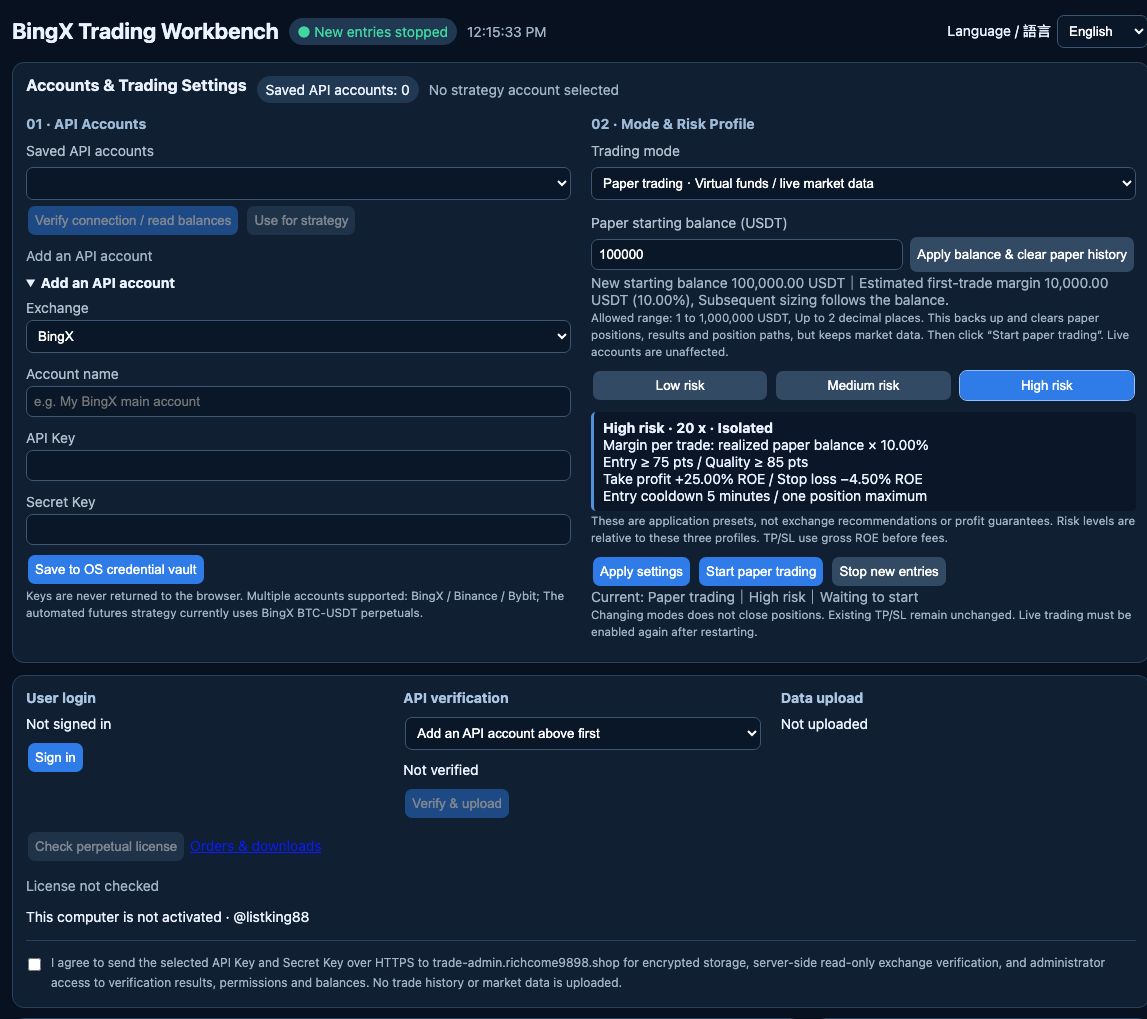
Figure 2: Actual clean-release interface on a Mac, without saved keys, live positions or enabled trading. Windows has the same browser controls but a different launcher and native credential store.
- Locate User login and click Sign in.
- The website opens Pay & download. If needed, expand Retrieve your download and enter your saved private license code. Compare the short connection code with the one shown in the desktop app.
- Approve only when the codes match and the computer is your own; choose Confirm my computer.
- Return to the app and choose Check perpetual license.
- Choose Activate this computer for the purchased license, then confirm the active status before starting.
Before activation, starting trades and moving funds are blocked. The website's private license code, the desktop's temporary connection code and an exchange API Key/Secret are different credentials. They are not interchangeable.
One license binds to one computer. Copying its certificate to another machine does not validate. The app sends a hashed machine identifier, not the raw hardware serial. An activated purchased version does not need an always-active website session, but market data still requires a network connection. Cloud sign-in lasts up to roughly one hour and must be repeated after restart; session expiry is not license expiry. Contact QuantPilot090@gmail.com for a computer replacement, changed identity after reinstall or lost certificate. There is no self-service unbind button.
08 | Create an API key with minimal permissions
An API credential lets software access your exchange account. It is not the payment-site access code. Paper market data does not require real trading credentials. Use read-only credentials for balance checks; enable perpetual trading permissions separately only if you decide to use BingX live execution.
This table describes application needs, not a determination of account eligibility. Country restrictions, KYC, account types and exchange rules are set by the exchange. Do not circumvent them with a VPN or other workaround.
| Purpose | Required access | Not needed |
|---|---|---|
| Local paper trading | Public market data; no real API account | Trading, withdrawals or transfers |
| BingX / Binance / Bybit account queries | Read-only access to the relevant account | Withdrawals, trading, subaccount administration |
| BingX BTC-USDT perpetual execution | Account, position and order queries plus perpetual trading | Withdrawals, spot trading, P2P, subaccount administration |
| Backend verification | Prefer a separate read-only key and explicit upload consent | Trading and fund-moving permissions |
BingX
Open official API Management from the user center, create a dedicated Key and complete the required security checks. Official documentation describes new keys as read-only until other permissions are enabled. Store the Key/Secret securely and do not select every permission. For live execution, use the perpetual permission shown in your current account interface. Restrict access to your actual trusted public IP; never copy another person's IP or disable protection to make a connection work. See BingX's official authentication guide.
Binance
Go to Account → API Management → Create API. This application uses Key/Secret authentication, so select System-generated (HMAC), not RSA/Ed25519. Complete verification and retain the Secret. This edition only queries Binance accounts: Enable Reading is sufficient; it does not need spot, futures or withdrawal permissions. The mobile entry is Binance Pro → More → API Management. Consult the official illustrated Binance guide.
Bybit
Use official web API Management. Bybit's guide says key creation is unavailable in the app; use the website on mobile instead. Choose the system-generated Key/Secret type and read-only permissions for relevant account queries. The application does not trade on Bybit. Newly registered accounts may have a temporary creation restriction. See the official illustrated Bybit guide.
Exchange layouts change. The official guides above contain their current illustrations; this manual does not expose a real account or scannable credential QR code. A masked or no-longer-visible Secret cannot be reconstructed. If replacement is necessary, first assess whether the old key is managing an open position before revoking it and updating the application.
09 | Save and verify an API account locally
- Expand Add an API account under 01 · API accounts.
- Select the correct exchange and enter a recognizable account name.
- Paste API Key and Secret Key in their separate fields without spaces or line breaks. Never send either to a support chat.
- Choose Save to OS credential vault. Verification starts and the saved-account count updates.
- Select the account and choose Verify connection / read balances. Inspect the check timestamp, available balance and individual account results.
- Only if you intend to use BingX execution, set the appropriate BingX account as the strategy account. Existing positions, pending orders or incomplete queries prevent account switching.
Keys are stored in macOS Keychain or Windows Credential Locker and are not redisplayed in the input fields. Saved means local storage succeeded, not that exchange verification or order placement succeeded. A successful read-only query does not prove trading permission. Spot assets and available perpetual margin are different balances; do not add them together as immediately tradable margin.
10 | Paper trading and risk profiles
A fresh distribution starts at zero virtual balance, without old trades, with both paper and live execution stopped. The suggested input 100000 is not already funded.
- After activating the computer, choose Paper trading under 02 · Mode & profile.
- Enter a virtual balance between 1 and 1,000,000 USDT with no more than two decimal places.
- Review whether old paper records should be reset. Apply balance & clear paper history archives the previous paper account, then clears paper positions, results and paths; it does not automatically restart trading.
- Select Low, Medium or High, then Apply settings.
- Read the next-entry margin, leverage and TP/SL preview before Start paper trading.
- Check the running status, data timestamps, blocking reasons and trade log. A directional signal alone is not enough to place an entry.
| Profile | Leverage | Margin per entry | Model threshold | TP gross ROE | SL gross ROE | Cooldown |
|---|---|---|---|---|---|---|
| Low | 2x | 1% of balance | 85 | +10% | -5% | 15 minutes |
| Medium | 5x | 3% of balance | 80 | +15% | -5% | 10 minutes |
| High | 20x | 10% of balance | 75 | +25% | -4.5% | 5 minutes |
These are relative application presets, not exchange recommendations or guarantees of safety. Shared checks include quality of at least 85, required risk/volume checks and three consecutive confirmations in the same direction. An existing position prevents another entry. A long signal executes long and a short signal executes short, not inverse. Scores are not win probabilities and entry does not require every displayed light to be on.
For illustration only, a 100000 USDT paper balance in High uses about 10000 USDT initial margin and about 200000 USDT notional exposure at 20x. Margin is not total traded value. Later entries depend on realized balance, precision and minimum-order rules. Realized balance does not change on every market tick when no position has closed.
11 | Read the chart, results and indicators
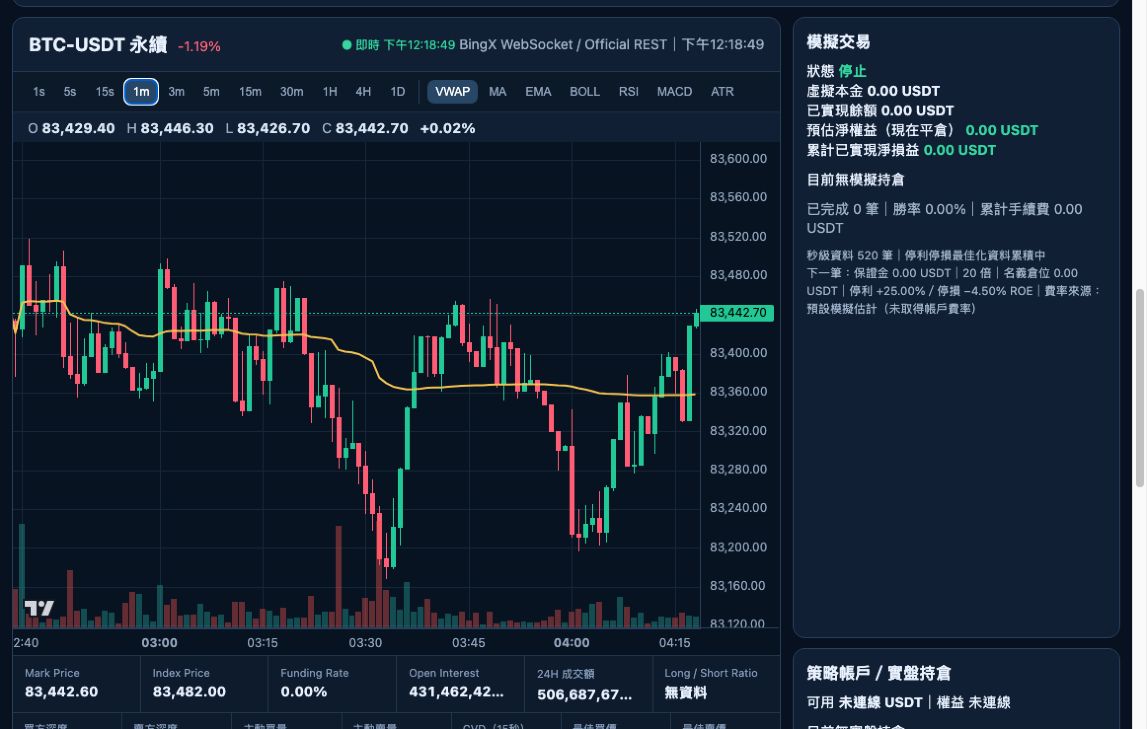
Figure 3: Real market UI captured in the isolated application; values are only a momentary observation, not a profit example. The image uses Chinese labels, with the equivalent concepts explained below. Missing or warming-up data is not a zero-valued trading signal.
| Area / field | Meaning |
|---|---|
| Candlesticks | Choose 1s, 5s, 15s, 1m through 1D. The crosshair displays open, high, low, close and volume. Second bars aggregate received trades; a trade is not guaranteed in every historic second. |
| Indicator buttons | Toggle VWAP, MA, EMA, BOLL, RSI, MACD and ATR. Chart visibility does not reconfigure the trading model. |
| Mark / Index / Funding | Mark price, index price and funding rate; not every field updates every second and none is a promise of your execution price. |
| OI / depth / active flows / CVD | Open positions, order depth, trade direction and signed-volume difference. CVD uses the displayed time window, not all-time market totals. |
| Long / short ratio | When unavailable, it is explicitly shown as unavailable rather than fabricated. |
| Condition lights | Green represents long-side conditions; red represents short-side conditions. Models have different weights, so counting lights cannot reproduce scores. |
| Realized balance | The virtual balance settled after position closures. |
| Estimated net equity | Includes estimated unrealized net P&L if closed now, and changes with prices. |
| Position panel | Direction, model/entry score, size, margin, notional, entry, TP/SL, gross P&L, estimated fees and net P&L. |
| Live account | Actual balances and positions queried for the selected API account, separate from paper funds. |
| Logs | Entry, exit and error timestamps. Sent is not the same as a confirmed fully filled exchange order. |
ROE is approximately gross P&L divided by margin, multiplied by 100%. Price return and ROE differ. At 20x, an approximately 1.25% favorable price move corresponds to +25% gross ROE, not a 25% increase in the entire account balance. Direction, slippage and fees affect realized results.
VWAP is a volume-weighted average price; MA/EMA are moving averages; RSI measures relative strength; MACD reflects moving-average momentum; BOLL denotes Bollinger Bands; ATR measures volatility; OI means open interest, not IO. None independently guarantees a reliable entry or return.
TP/SL is expressed in gross ROE before fees. Paper net P&L deducts entry and exit fees, using a disclosed estimate when the account fee is unavailable. There is no 40% rebate in current calculations. The simulator does not fully model funding settlement, liquidation or every market-impact effect. Its TP/SL optimization view estimates recorded paths, not promised future returns.
12 | Live trading, stopping and transfers
Before any live action, independently confirm eligibility, minimum orders, account mode, key permissions, available USDT, fees, existing positions and protective orders on the exchange. Do not risk funds you cannot afford to lose. These instructions explain controls, not an investment recommendation or a recommendation to select any leverage.
If you decide to go live, select a verified BingX strategy account, choose Live trading and a profile, Apply settings, review again, then choose Start live auto trading yourself. Mode changes do not close old positions. Restart does not automatically enable live execution. A fixed statement such as “1 USDT can always open a position” is not valid; current exchange limits apply.
Stop new entries prevents new trades but does not close an existing position. While the app runs, existing position management continues. Before quitting, verify exchange-side positions, pending orders and TP/SL. Decide yourself whether a position should be closed. Local exit logic cannot be guaranteed during disconnection, sleep or shutdown.
Account transfer moves real assets; it is not a paper deposit and is unnecessary for simulation. If you elect to use it, carefully check source, destination and USDT amount in the confirmation. Without the appropriate permission, use the exchange's official interface rather than expanding permissions to fix a balance error. After a timeout, inspect exchange history before retrying to avoid duplicate transfers. No real trades or transfers were made while producing this manual.
13 | Cloud verification and data upload
Saving keys locally, authorizing a computer and consenting to upload are separate actions. Payment verification does not upload exchange credentials.
- Sign in under User login and explicitly select one API account under API verification.
- Read Data upload consent. Prefer a separate read-only key rather than exposing a high-privilege trading key merely for account verification.
- Check consent yourself, then choose Verify & upload.
- Read Saved in the backend separately from Read-only verification successful, partial success or failure.
The selected Key/Secret and necessary account label are sent over HTTPS to trade-admin.richcome9898.shop and stored encrypted. Administrators can inspect verification results, permissions and balances. The UI does not reveal plaintext keys, but the server still receives and stores the credential; this is not a local-only operation. No upload occurs without consent. Local trade history, market data and logs are not uploaded. Signing out does not delete previously uploaded records; contact support for data requests.
Cloudflare's outbound IP is different from your computer's. A locally successful query can fail in the cloud. Do not remove a trading key's IP restrictions to fix cloud verification. If a suitable trusted IP cannot be supplied, retain local-only use and ask support.
14 | Backup, updates and repeat downloads
- Application data lives under data/ in the extracted folder. Secrets are stored in the native OS vault, not a plain configuration file.
- Paper reset archives are under data/paper_archives/. Do not delete individual database sidecar files or move data while the app is writing.
- Stop new entries, review live positions/protection, then shut down before backing up your own entire application folder. Backups can include private identifiers and history; never publish them.
- Moving the folder changes the credential-vault namespace and may require keys to be entered again. Never distribute a used folder to another customer.
- This is a documentation-only update; software and license version remain 20260927-device1. Existing activated users may copy only the new docs/ folder, START_HERE.html and both README files into their original folder. Do not overwrite data/, certificates or other private files.
- Future software-version compatibility depends on its release notes. This documentation update does not imply all future major versions are free or safe to overwrite in place.
- To download again, open the payment page and use Retrieve your download with the saved private license code. Do not purchase again. A second download does not authorize simultaneous use on a second computer.
15 | Troubleshooting safely
| Problem | Safe response |
|---|---|
| Python not found / launcher closes | Check the supported version and PATH. Run the launcher from a terminal to read the error; do not randomly change administrator permissions. |
| Dependency installation failed | Check connectivity, disk space and organizational proxy settings, then retry the same launcher. Avoid unknown repair software. |
| Browser cannot connect | Confirm the terminal is still running, allow installation to finish and use its displayed port, not a guessed 8000. |
| unable to open database file | Extract to a writable folder and check space/permissions. Stop and back up before changing files; do not delete the database as a quick fix. |
| Invalid Key / signature failure | Check exchange, Key/Secret pairing, mainnet credential type, computer time and IP restrictions. Never send the Secret to support. |
| Native credential store failure | Check your OS account and Keychain/Credential Locker access. Do not switch to plaintext credential files. |
| Saved but no balance | Verify connection and examine spot/perpetual results separately. Zero balance and failed query are not equivalent. |
| Funded but cannot enter | Check account type, available margin, minimum quantity/notional, precision, leverage and permission. Increasing leverage is not a generic fix. |
| Score reached but no trade | Inspect quality, volume, data age, spread/slippage, cooldown, consecutive confirmations, existing positions and activation. |
| Frozen candles | Check data timestamp, connection and terminal. Refresh the page first. Before restarting, check live positions; do not run duplicate engines. |
| Paper balance unchanged | Realized balance changes on closure. Inspect equity/unrealized P&L and confirm paper funds were applied and execution started. |
| TP/SL apparently exceeded | Distinguish chart reference price, executable price, gross ROE and net results. Inspect live exchange orders and positions immediately rather than assuming protection worked. |
| No OS download buttons | Use Retrieve your download with the saved private license code. If not verified, check the TXID. |
| Payment still waiting | Return to the payment page and press Verify payment again. Contact support for mismatches instead of paying twice. |
| License bound elsewhere | Check whether you changed computers or reinstalled the OS. Contact support; do not edit license bindings manually. |
| No message after page closed | There is no email/SMS push. Return to the payment page to verify the TXID or retrieve your download with the saved private license code. |
16 | After-sales terms and issue reports
Company email: QuantPilot090@gmail.com. Merchant: QuantPilot Technology Co., Ltd. (English translation). Address: 101 S San Fernando St, San Jose, CA 95113, United States. Phone: +1 (201) 913-4284.
This guide does not replace the purchase contract. Current terms include 12 months of purchased-version bug/security fixes and specified support, an initial response within two service days for ordinary cases, and a written refund request window of seven days counted from the day after delivery, subject to the full terms. Read License and after-sales terms and the terms saved at purchase; statutory rights remain unaffected. Support does not include managed trading or profit guarantees.
A useful report contains the release version, OS version, time and timezone, exact step, error text and actions already tried. For payments, also provide the TXID, amount and network privately through designated support, not public posts. Hide access codes, API Key/Secret, wallet QR codes, verification codes and unrelated assets in screenshots. Do not send your complete data folder or OS credential vault.
17 | Sources and verification boundary
Controls, presets, fees and file behavior were checked against the distributed source. Website instructions match the deployed interface on 2026-09-28. API creation references the official sources linked in section 08; follow current official instructions if an exchange changes its screens or permissions.
Screenshots come from isolated interfaces without customer credentials. They do not pretend to show a paid customer, live performance, Windows-native runtime or proven real-money execution. Payment tests use synthetic receipts and automation, not actual transfers. Windows evidence is limited to a prior user report and static/automated checks; this guide does not claim acceptance on every Windows computer.